IAM Tasks
Task 1: Create a VM on GCP and Host a Website
Steps:
Log in to GCP Console:
- Go to Google Cloud Console.
Create a New VM:
Navigate to Compute Engine > VM instances.
Click Create Instance.
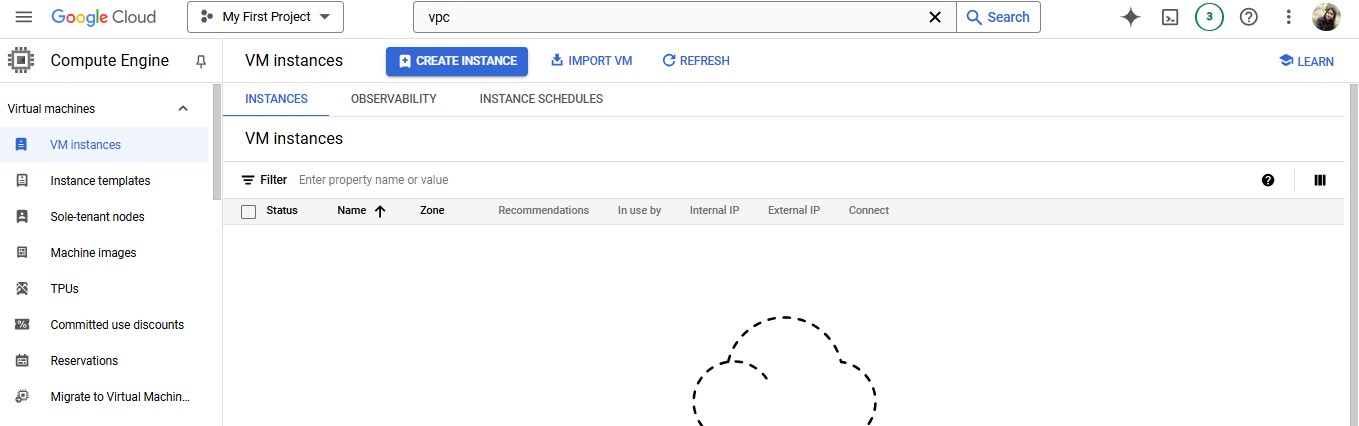
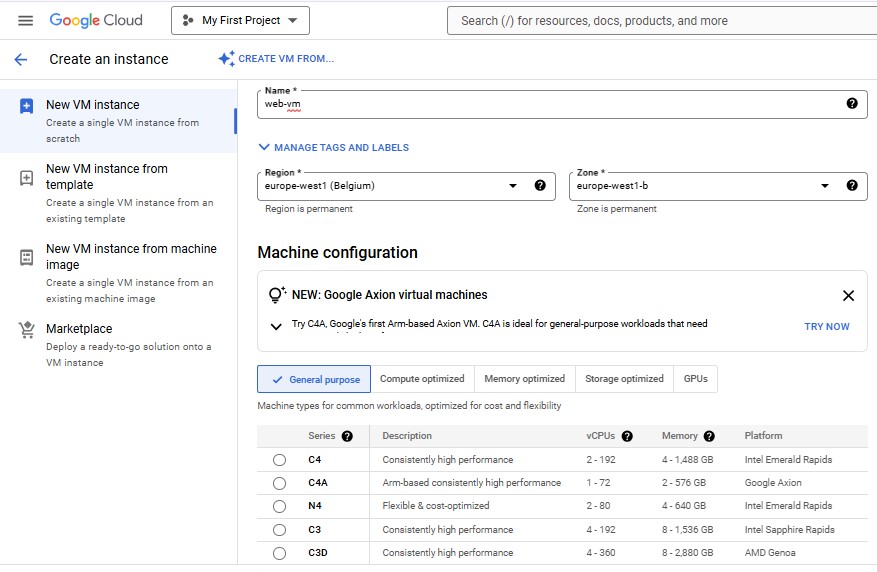
Fill in the instance details:
Name: Give it a unique name (e.g.,
web-vm).Region: Select a region closest to your target audience.
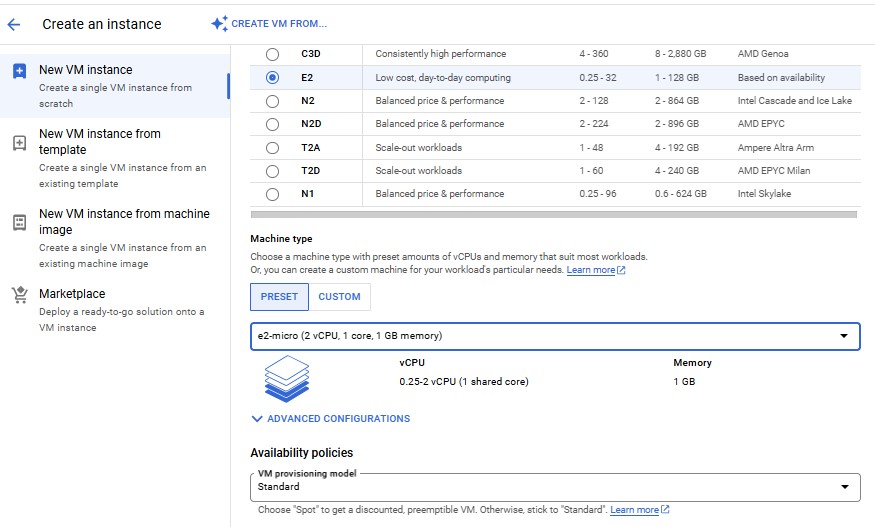
Machine Type: Choose a suitable machine type (e.g., e2-micro for testing).
Boot Disk: Select an OS, such as Debian GNU/Linux 12 (bookworm).
Enable Allow HTTP traffic and Allow HTTPS traffic under Firewall.
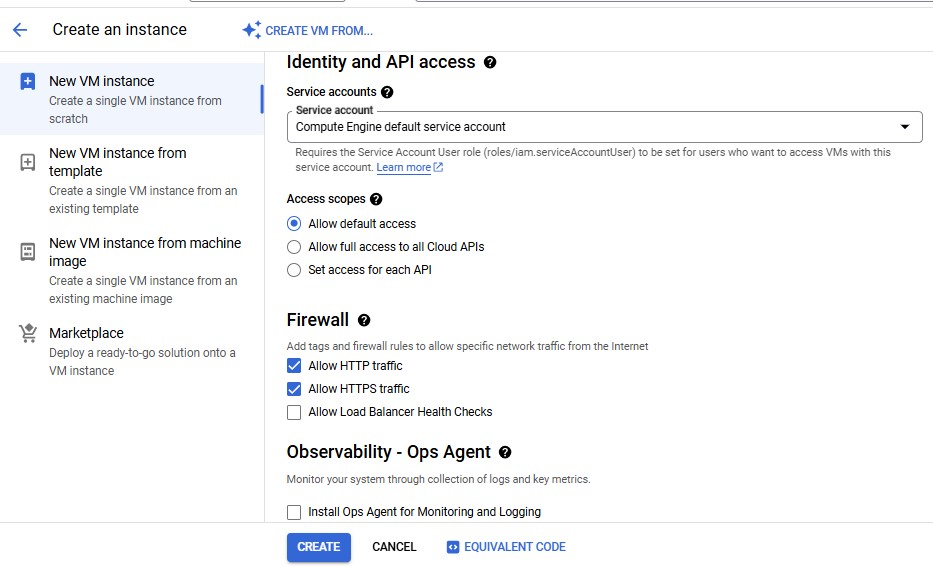
Click Create.

Host a Website:
SSH into your VM from the GCP console.
Install a web server (e.g., Apache or Nginx):
  sudo apt update
  sudo apt install apache2 -y
  sudo systemctl start apache2
  sudo systemctl status apache2
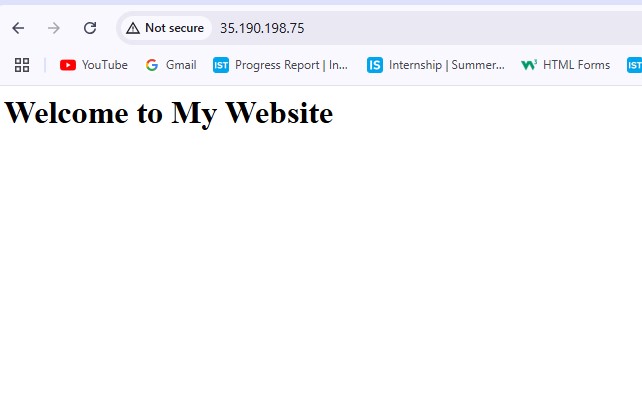
Replace the default web page:
echo "<h1>Welcome to My Website</h1>" | sudo tee /var/www/html/index.htmlClick on the External IP of VM to check status of your website.
Restrict VM Access to Specific Users:
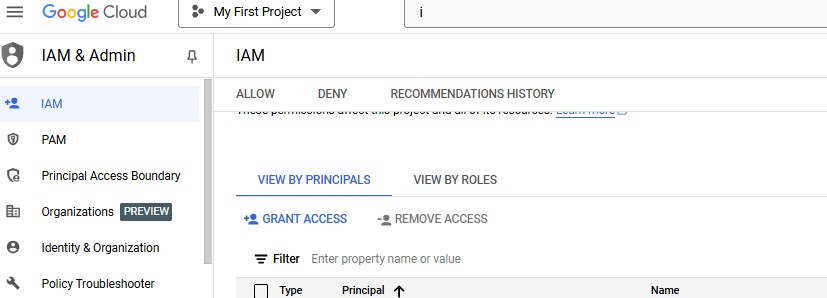
Go to IAM & Admin > IAM in the GCP Console.
Add members:
Click on GRANT ACCESS.
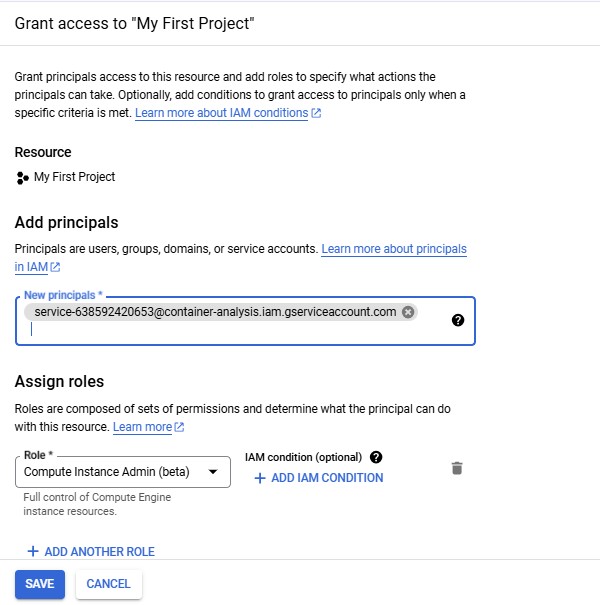
Enter their email addresses.
Assign them the role Compute Instance Admin.
Task 2: Create a GCS Bucket and Verify VM Access
Steps:
Create a GCS Bucket:
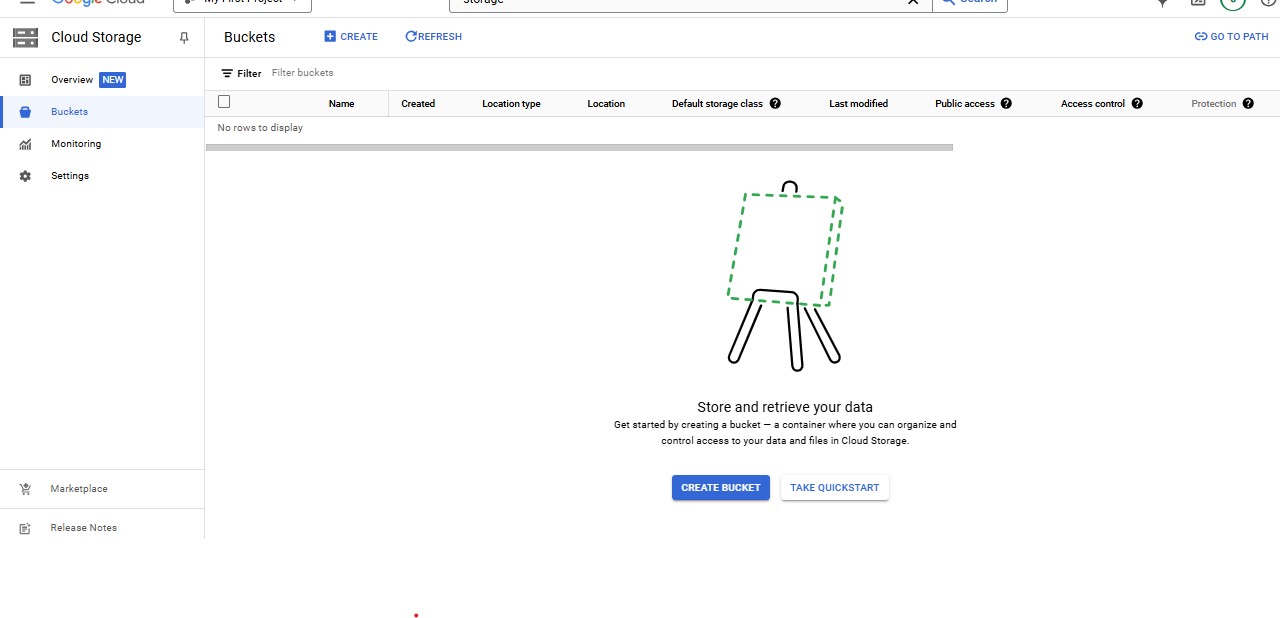
Go to Storage > Buckets.
Click Create Bucket.
Configure the bucket:
Name: Choose a globally unique name (e.g.,
01-my-bucket).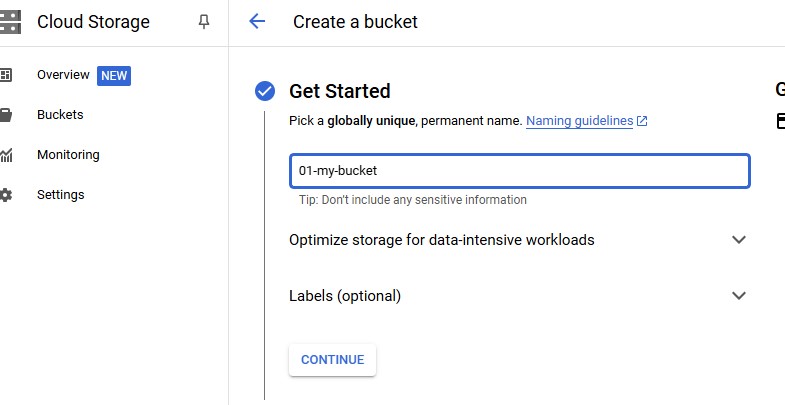
Location Type: Select Regional or Multi-Regional.
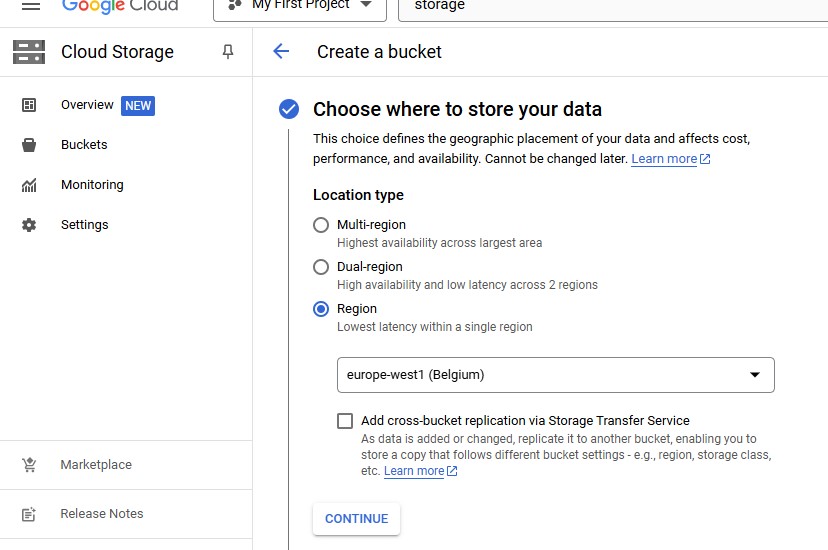
Storage Class: Choose Standard, Nearline, Coldline and Archive etc., based on your needs.
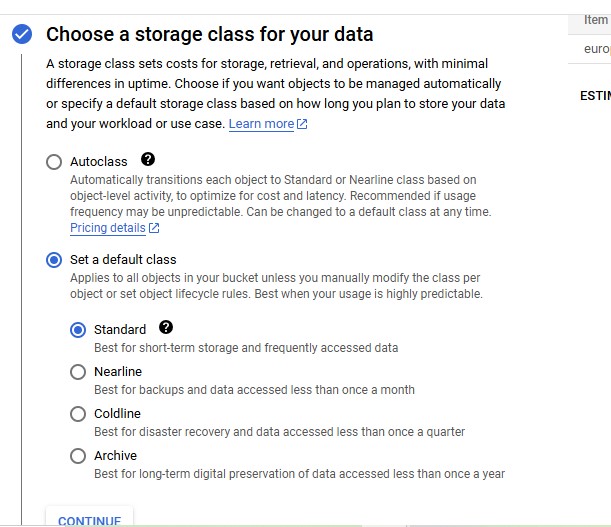
Click Continue and then Create.
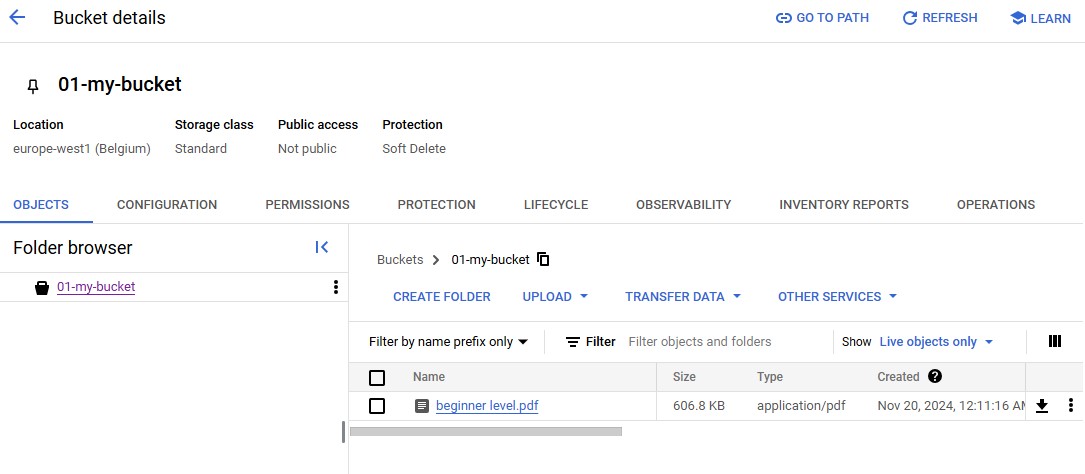
Assign IAM Permissions:
Go to the Permissions tab of the bucket.
Add the service account associated with your VM:
Service accounts are typically named like
project-id-compute@developer.gserviceaccount.com.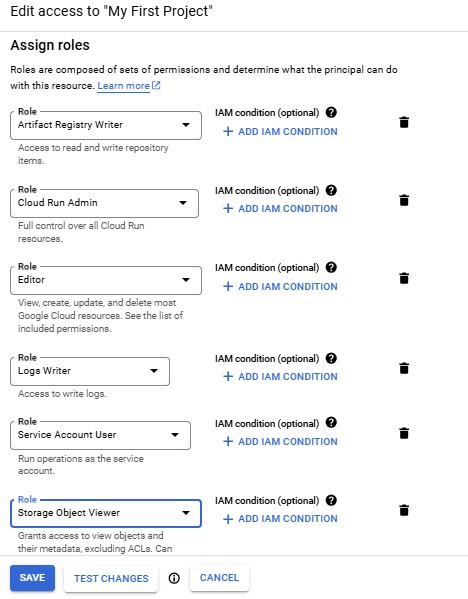
Assign the Storage Object Viewer role.
Verify VM Access:
SSH into your VM.

Authenticate the VM with the GCS bucket:
Test access:
gsutil ls gs://01-my-bucket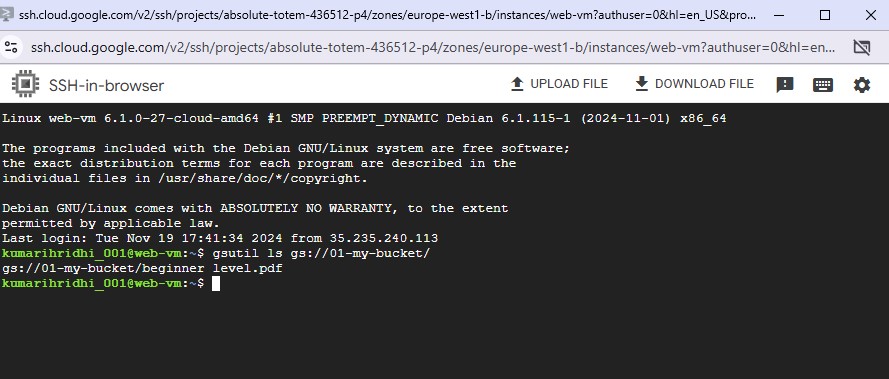
Other Possible Way:
Grant Compute Engine Default Service Account Permissions:
- Add Storage Object Viewer role to the default service account under IAM & Admin.
